
Stripe allows you to securely accept online credit and debit card payments through your website.
Connecting Stripe Directly (Recommended)
The easiest way to connect Stripe is through the built-in Stripe Connect integration.
- Go to E-commerce > Payment Options.
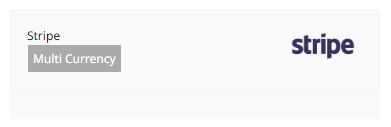
- Scroll down to the Stripe section and click Multi Currency in the Stripe Box.
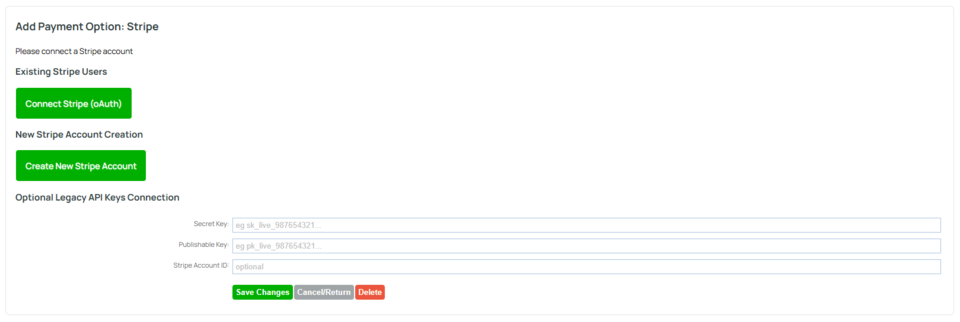
- On the next screen, if you already have a Stripe account, click Connect Stripe and use your Stripe sign in credentials to authorise the connection.
- If you don't have a Stripe account yet, you can create one using the Create New Stripe Account Button.
Once the connection has been authorised, your website will automatically be linked to your Stripe account and ready to accept payments.
This method is recommended as it is simpler, more secure, and automatically manages the required API credentials for you.
Testing Your Stripe Integration
Once your Stripe account has been connected, you can verify everything is working correctly by:
- Creating a hidden product priced at a small amount (for example, $1.00).
- Visiting your test website as a customer.
- Completing a test purchase using your own payment card.
- After confirming the payment appears in your Stripe Dashboard, you can remove or hide the test product.
- Note that sites that are not live will NOT be able to call back to the website to mark the order as paid - and will produce an error when trying to do this.
Advanced Options
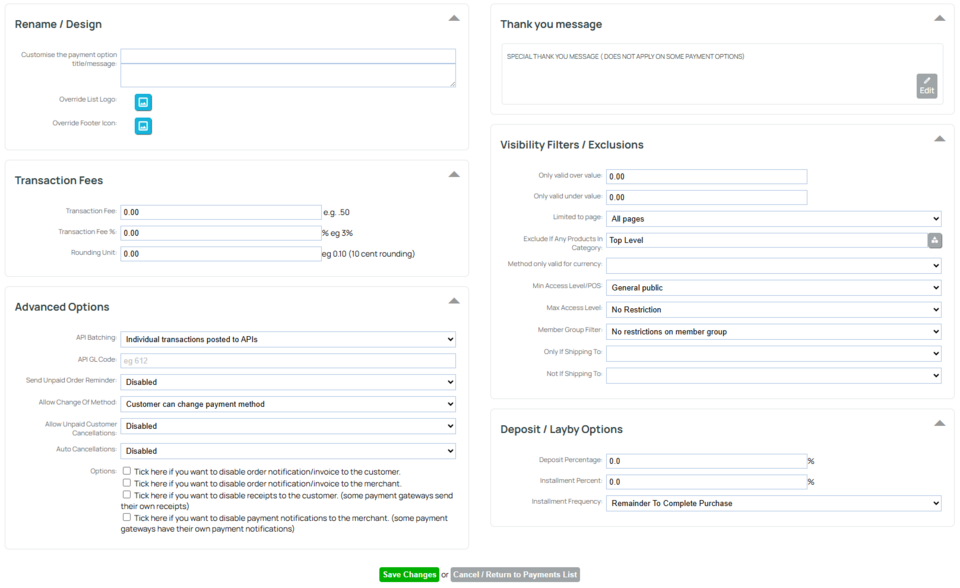
Additional Stripe configuration options are available below the Stripe settings section for more advanced requirements.
Important: Please ensure you comply with the terms and conditions of your payment gateway regarding transaction fees and surcharges. Some payment providers or local regulations may prohibit passing payment processing fees directly on to your customers.
Legacy Stripe Integration (API Keys)
If you are using the older Stripe integration, you can still connect your account using your API keys.
- Go to E-commerce > Payment Options.
- Scroll down to the Stripe section and click Multi Currency.
- Enter your:
Secret Key
Publishable Key - You can find these in your Stripe Dashboard or in your original Stripe approval email. It is recommended that you copy and paste the keys to avoid typing errors, and ensure there are no extra spaces before or after either key.
- Your keys should be your Live keys:
- Secret Key begins with sk_live
- Publishable Key begins with pk_live
- Both keys are typically around 90 to 100 characters long. Do not use your test keys (which begin with sk_test and pk_test) unless you are specifically testing in a development environment.
5. Click Save Changes.
